


Making Box Mockup
This tutorial provides a step–by–step guide on creating and rendering a 3D product box in Boxshot without modeling and any special graphic or art knowledge. All you need is 2D artwork and about five minutes of your time.
Artwork
You need the 2D artwork for your box. Boxshot doesn’t have a built–in graphics editor as there are way too many of them around to reinvent a wheel.
In this tutorial we will be using the artwork below:
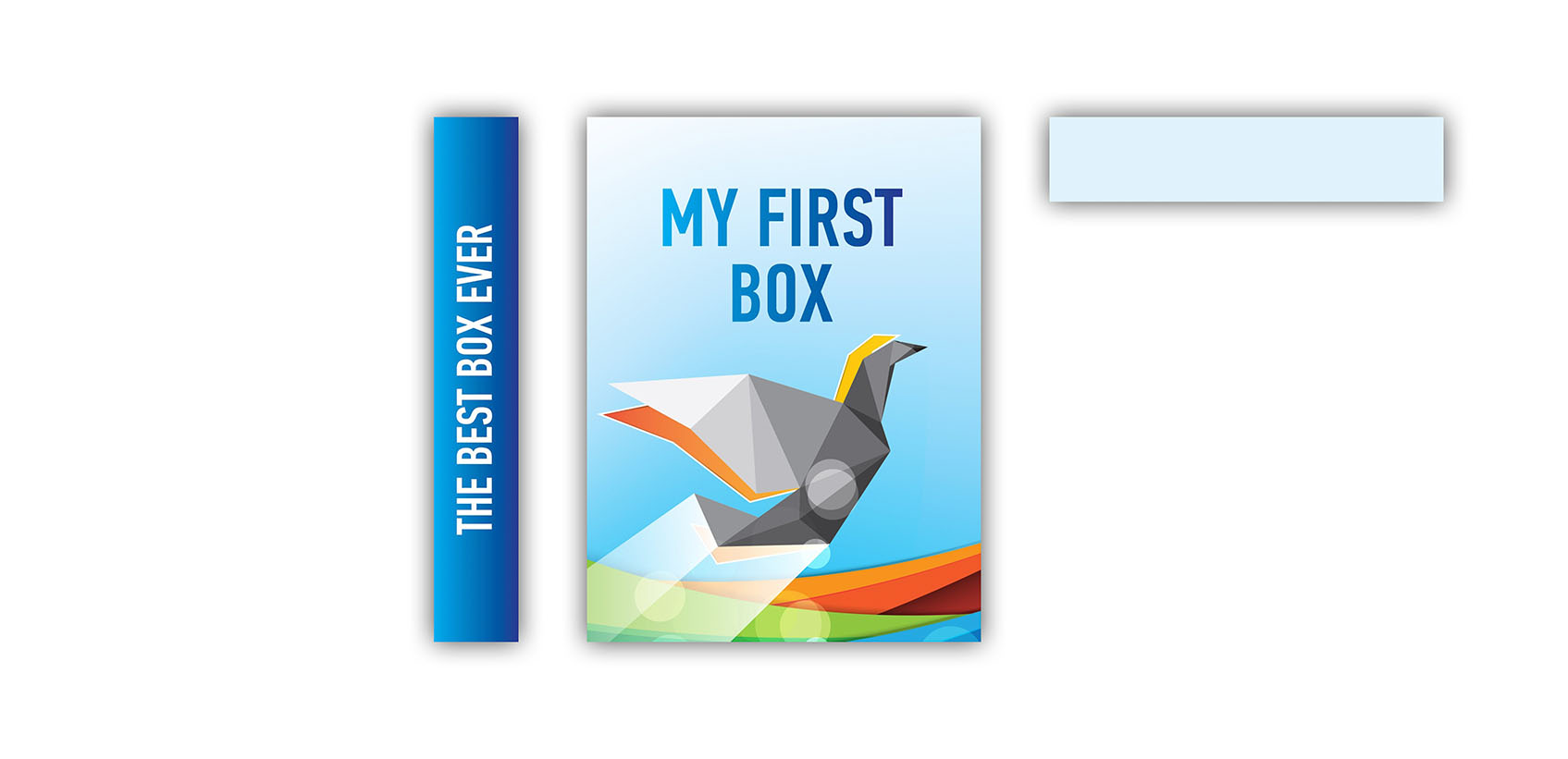
It comes in three images: for front, left and top sides of the box. Here you can download it if you like.
Too Complex?
If you feel that the instructions below are way too complex, consider trying our online box mockup maker where you can easily make box mockups right in browser and absolutely free. There’s no that much options there, but everything is quick and easy. Come back if you need more features.
Making a Box
Download and install Boxshot if you haven’t done this yet, then start it and switch to Boxes in the left panel:
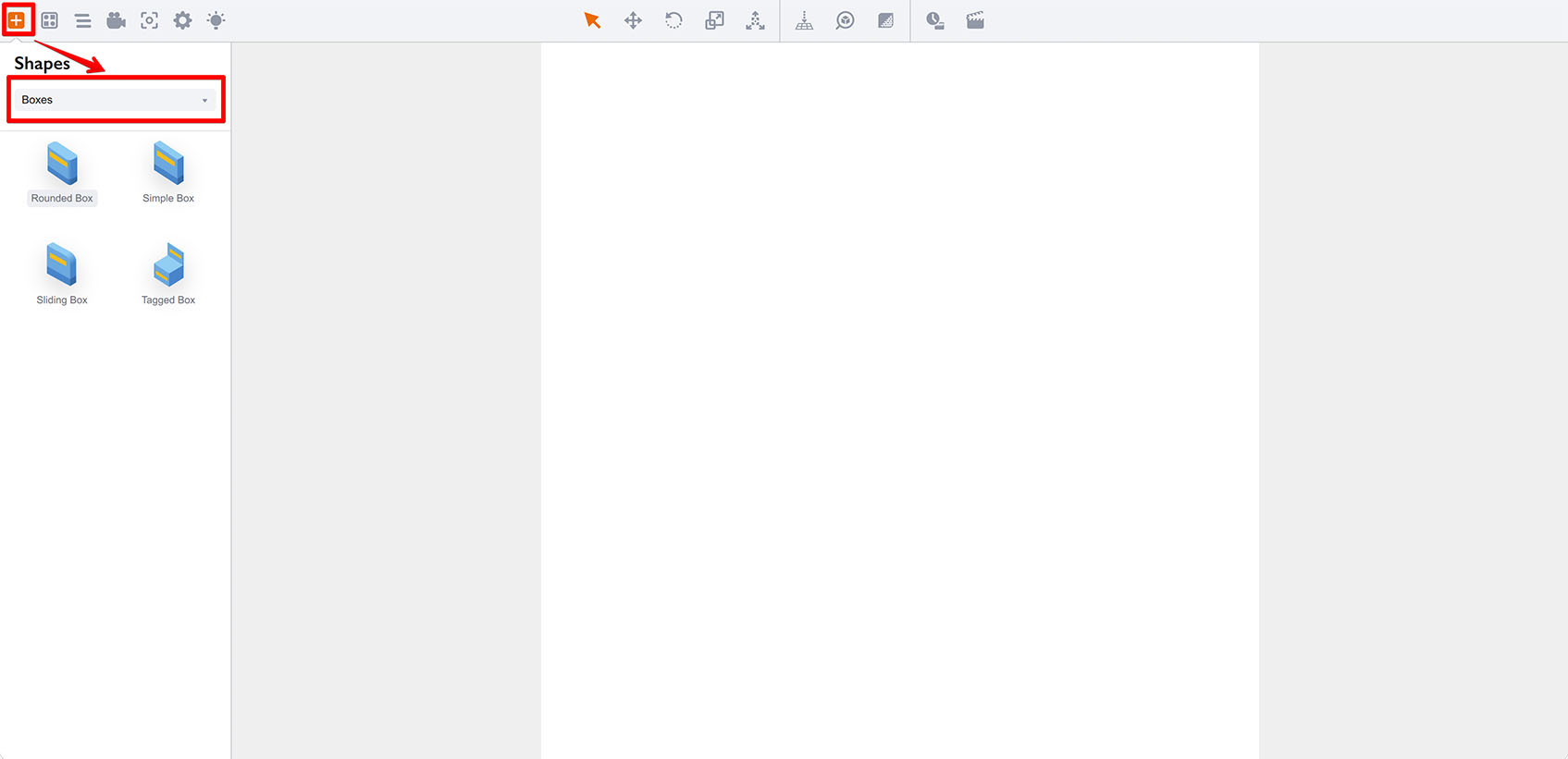
Then click the Simple Box shape and drag it into the scene:
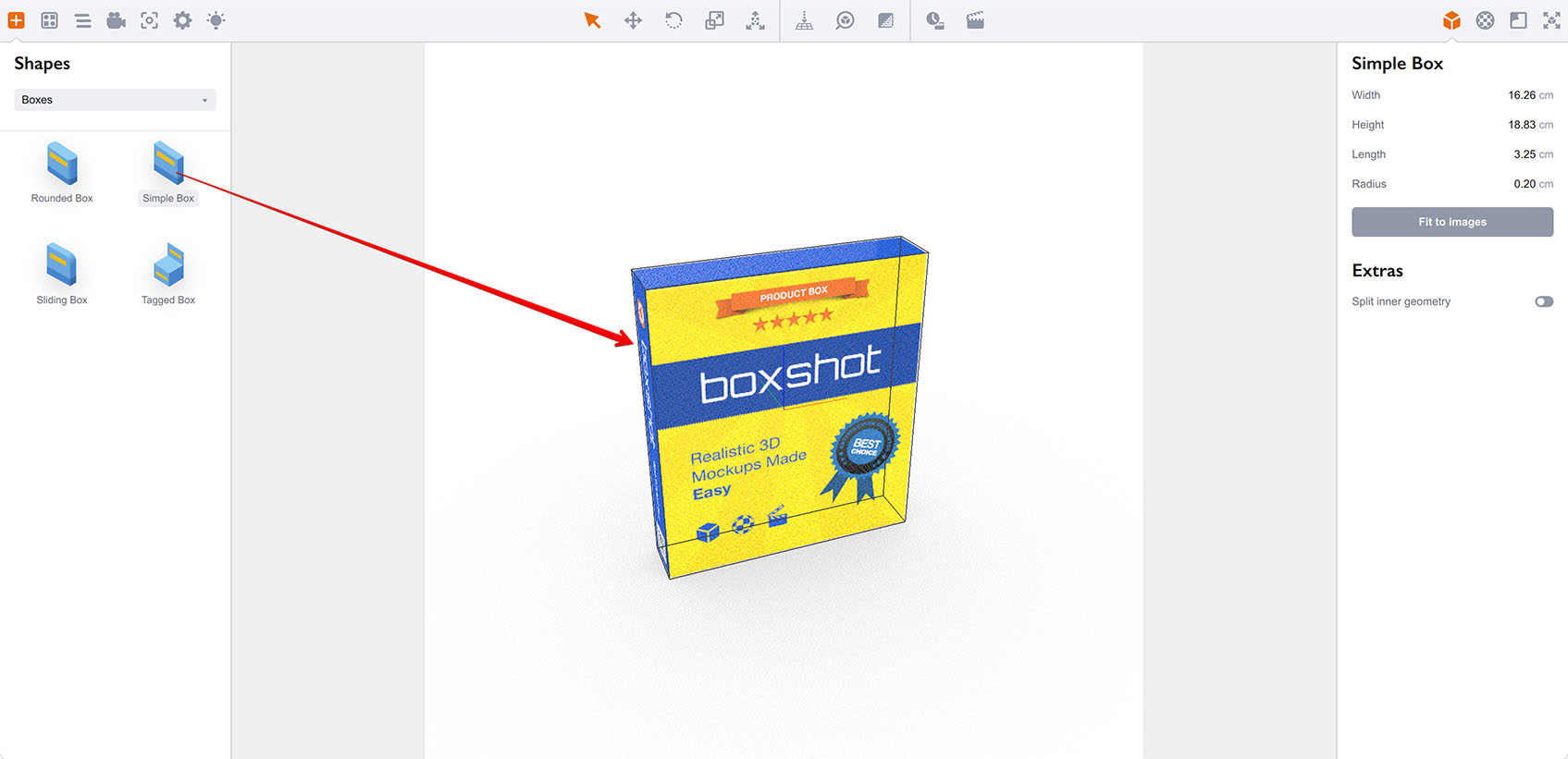
Once the box is added, you can rotate the camera by holding the left mouse button and moving the mouse around. You can also zoom the scene using the mouse wheel.
Now switch to the folder with the artwork, grab the front image with your mouse and drag it onto the front side of the box in the scene. Boxshot may ask you how to use the image, select the Texture item from the popup menu. You should see the image applied to the box:
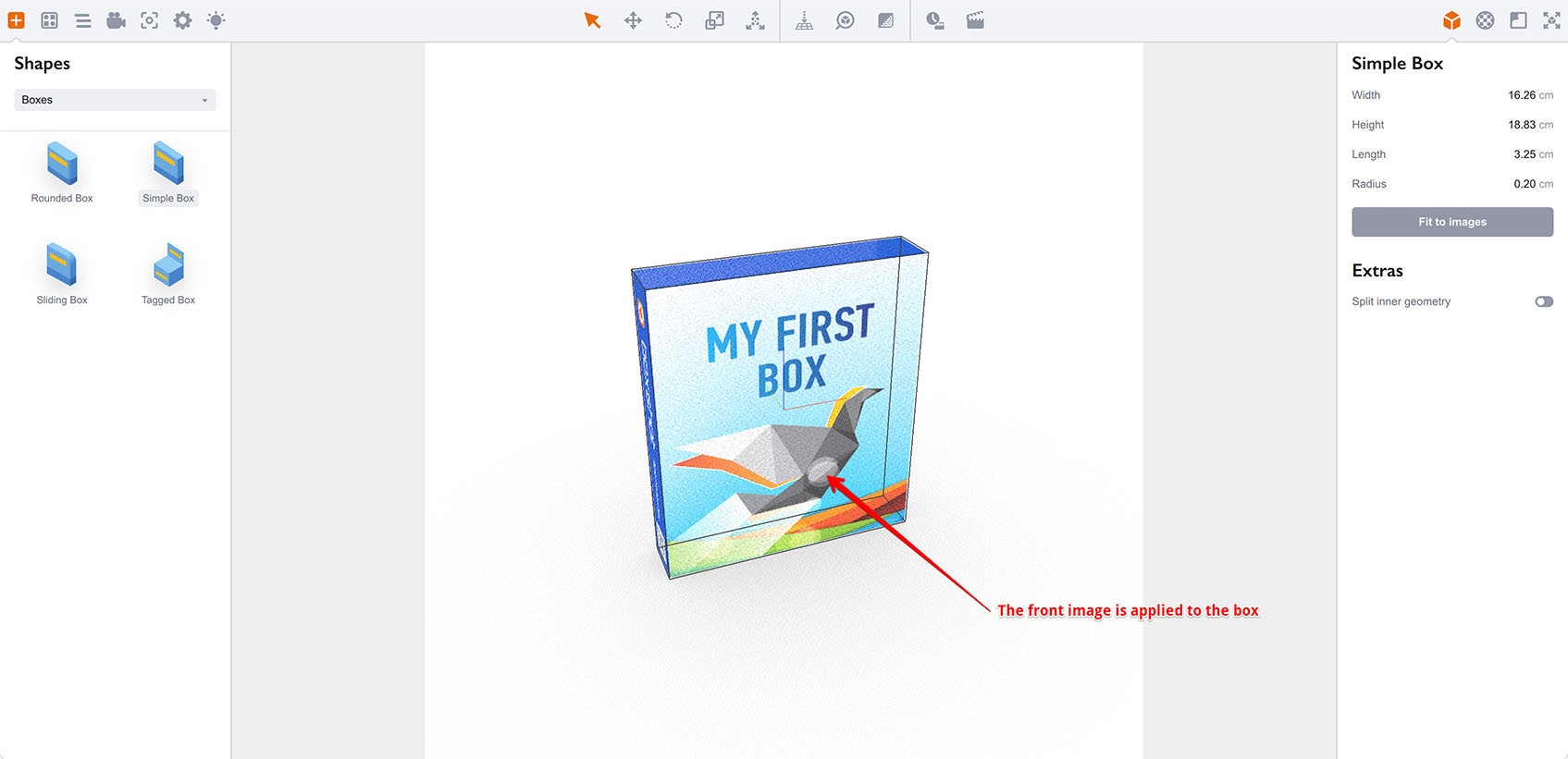
Then do the same for side and top images. You should end up with a fully configured box.
Note that if you don’t have separate images for left and right sides or for front and back ones, you can re–use the opposite side image. Say front for back and right for left. Here’s what you will end up with:
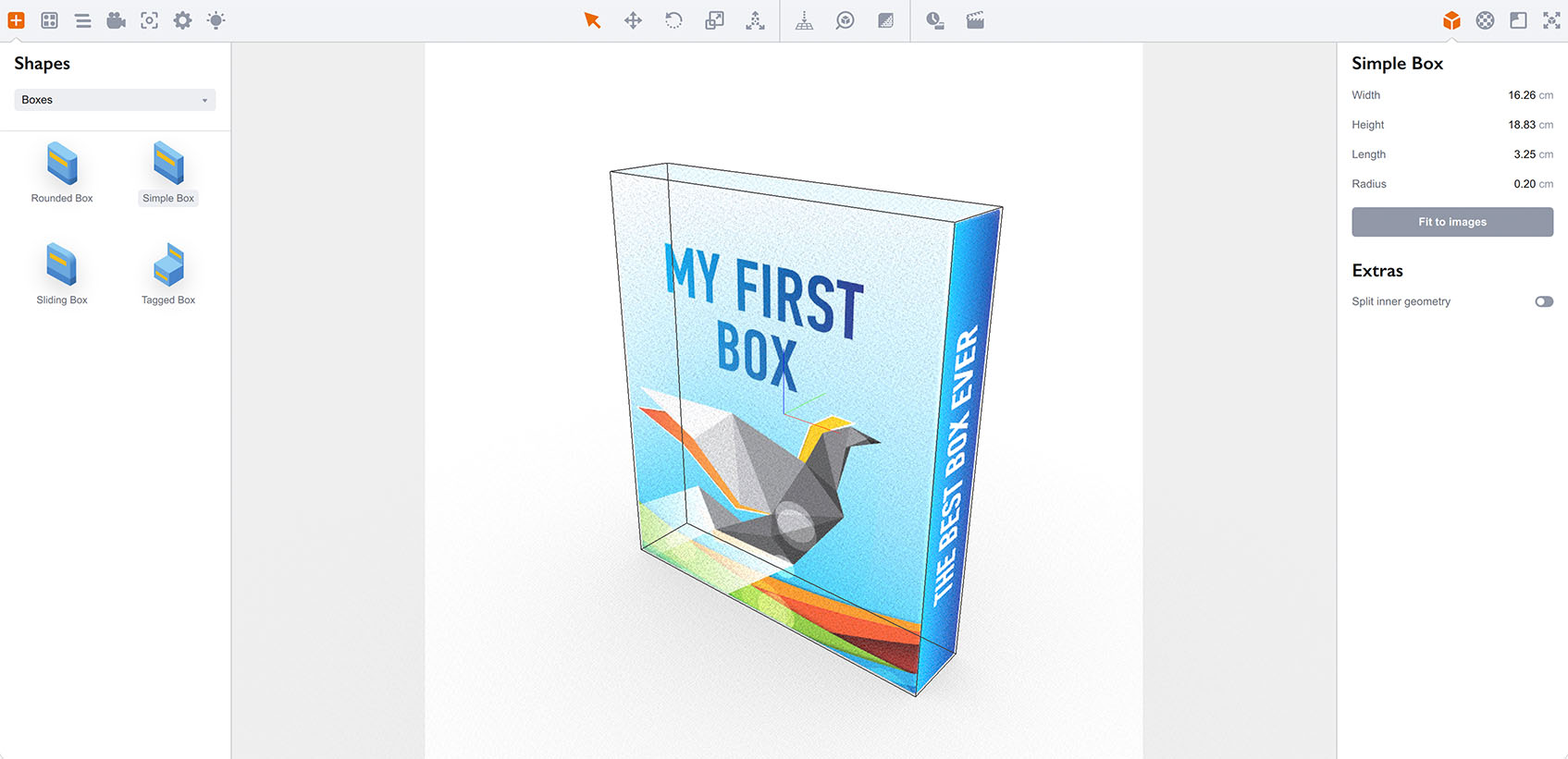
Finally, you need to adjust the box size to match the artwork. Boxshot doesn’t change the shapes’ dimensions when you apply artwork, so you need to tell it to do so. Although you can manually configure the dimensions using the right panel, there is a faster way: simply click the Fit to images button that automatically resizes the box to match the artwork you uploaded:
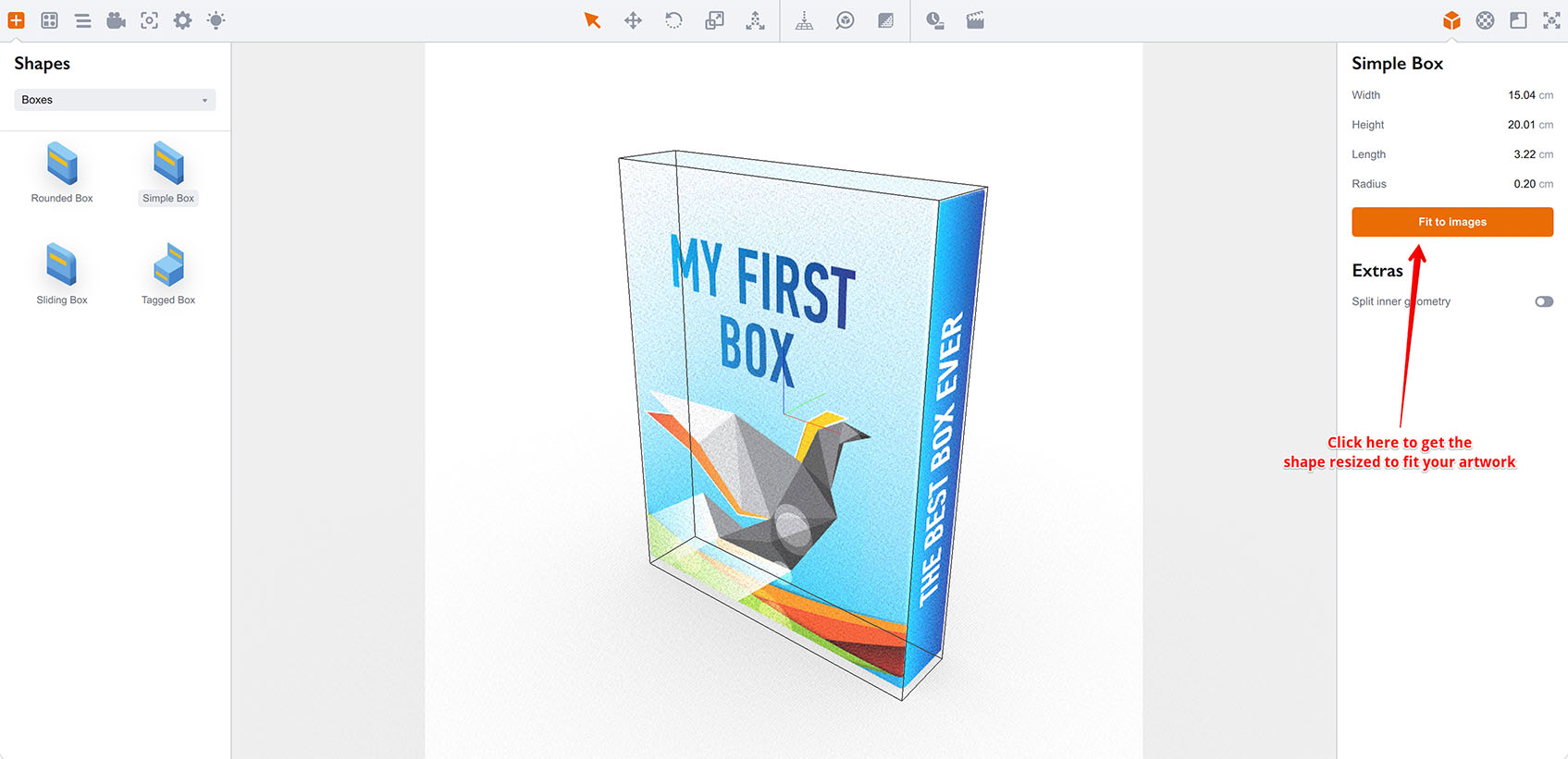
Perfect! The box is now properly resized to fit the artwork you uploaded. The only thing we need is to make sure it is placed on the floor as resizing may change that. Click the Put on the floor button in the toolbar to get this fixed:
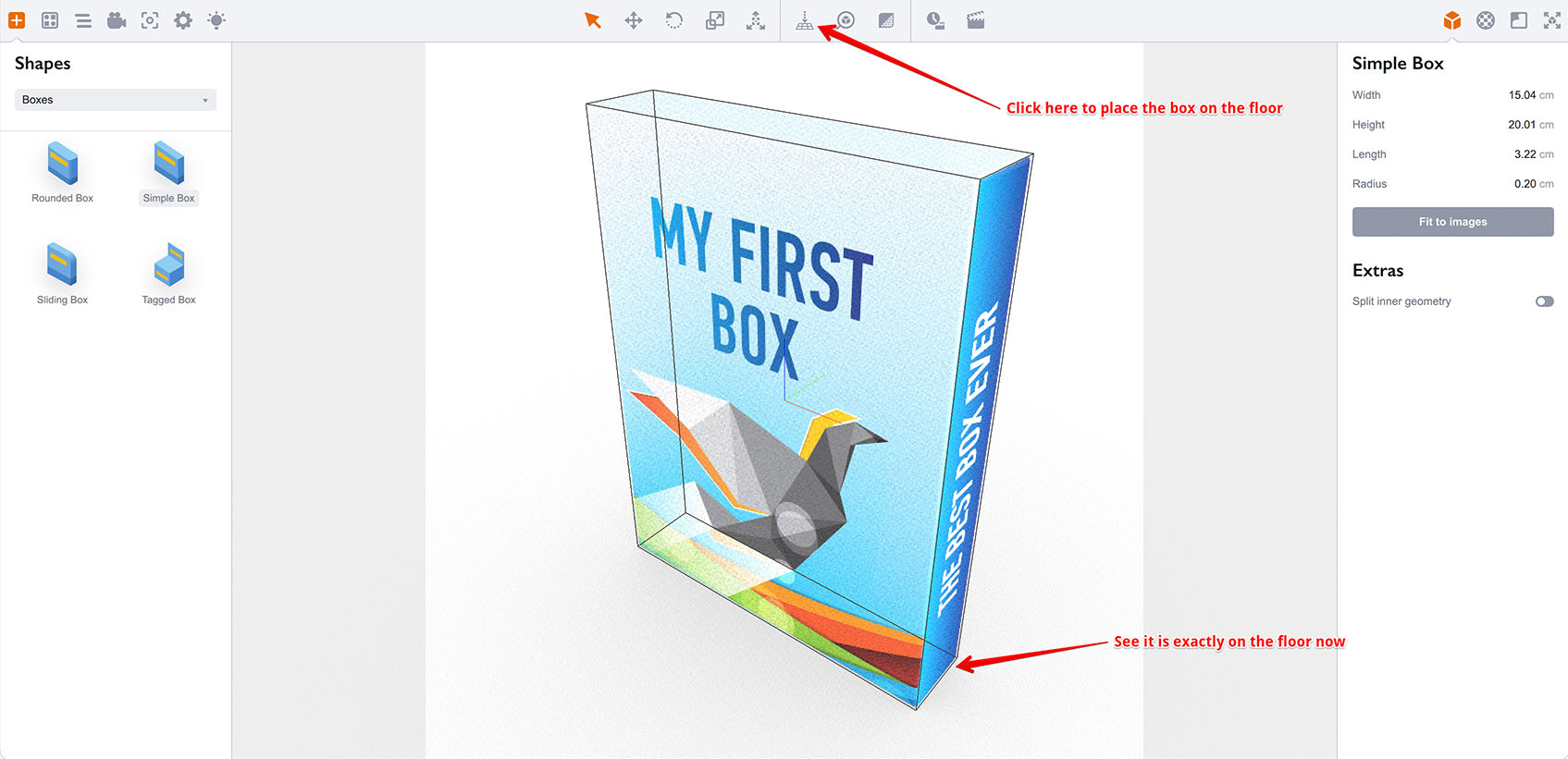
Done! Rotate the box and see that everything fits perfectly. Here you might want to adjust materials further, if you like.
Adjusting Camera
Before rendering the box, it is worth visiting the Camera panel on the left to review the camera settings and maybe adjust them. Switch to the camera panel like below:
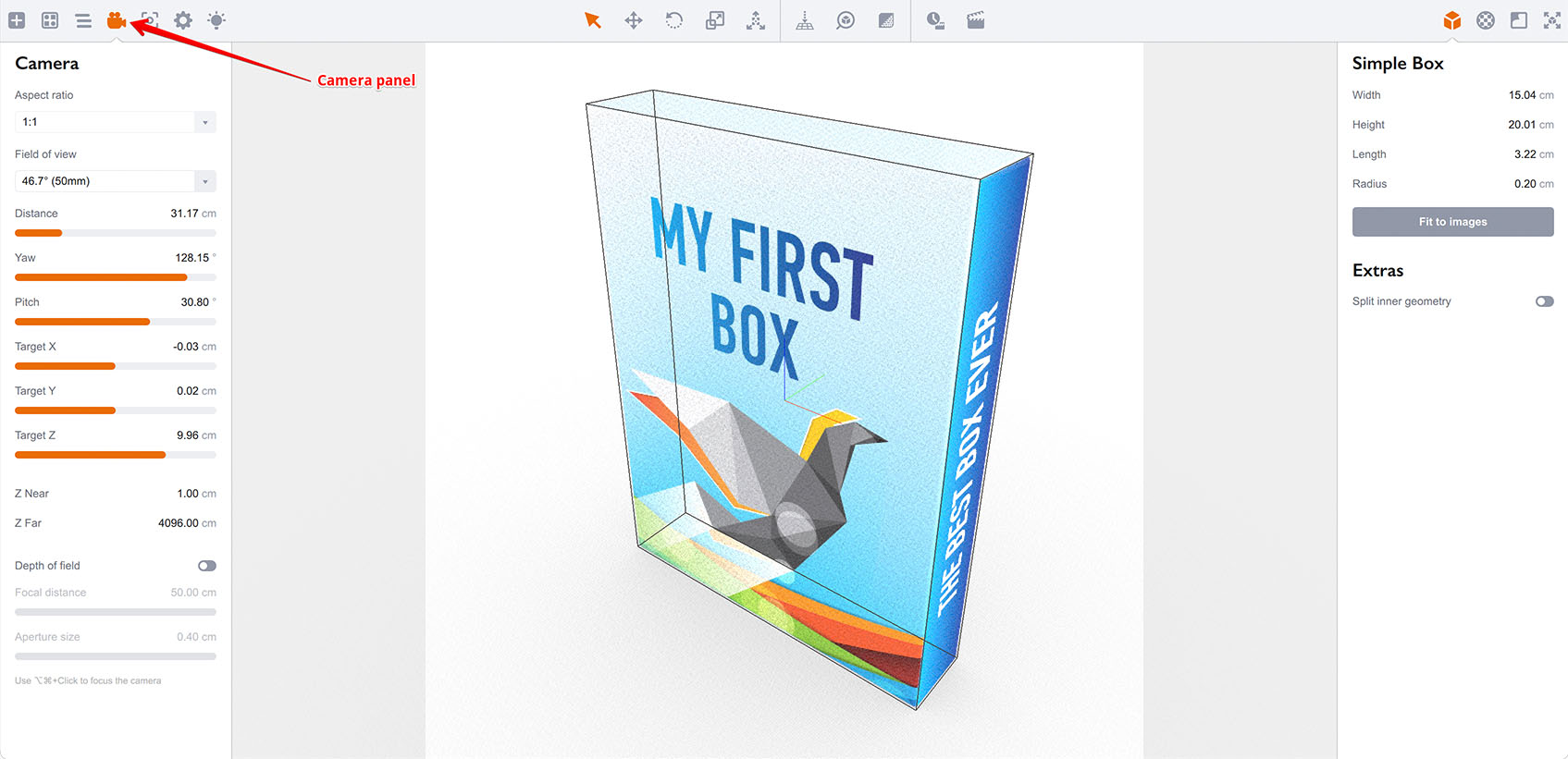
What you may really want to adjust is the Aspect field. It is 1:1 by default, which means a square image. Boxshot shows the working area of the scene using gray overlay and if you look at the images above, you will notice the working area is square. Let’s change it to 4:3 and see what happens:
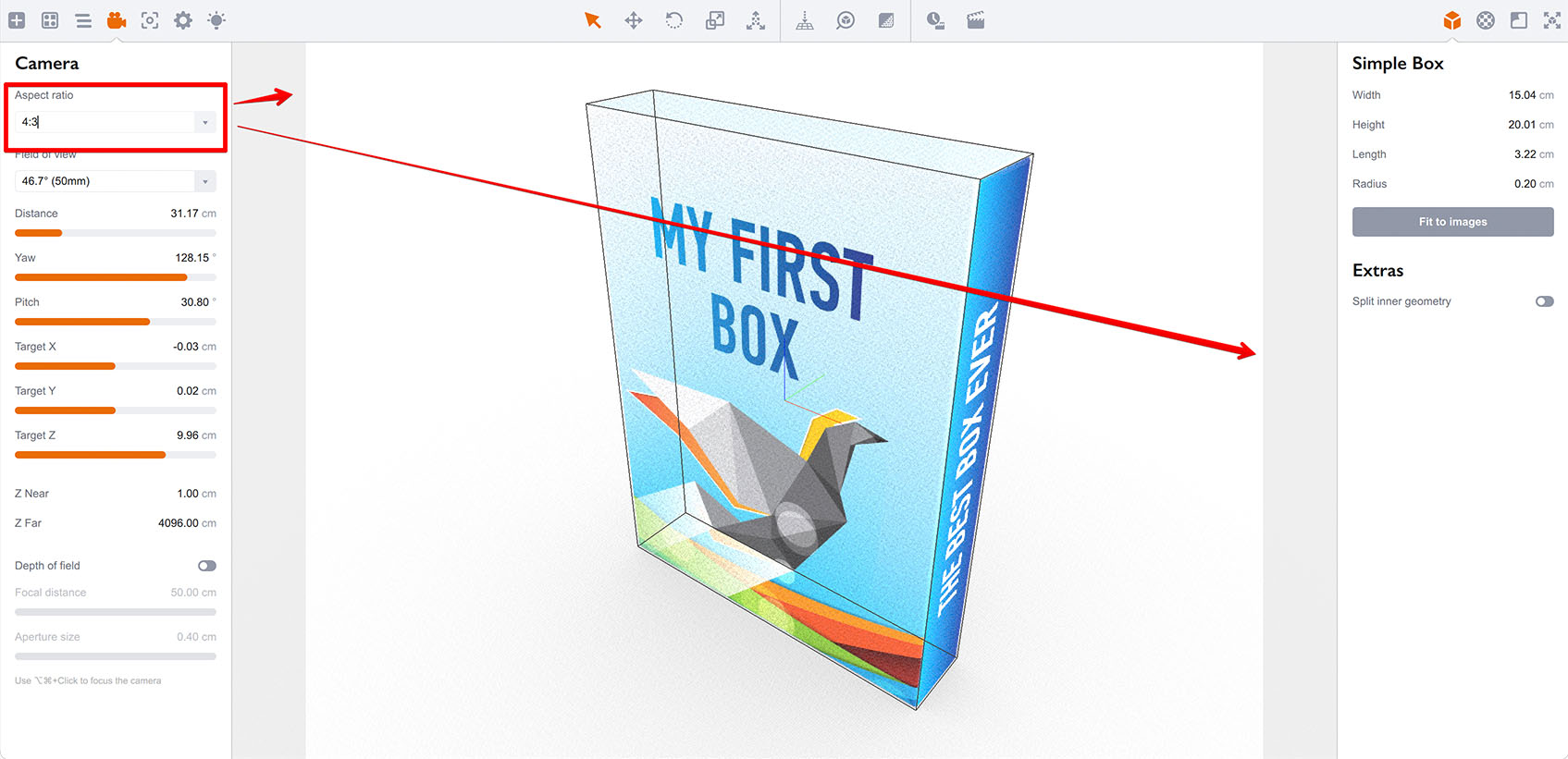
The gray overlay changes and the working area has now a different proportions. It is really helpful to define a proper aspect ratio, so you render exactly what you need.
Read more about camera settings here
Rendering Scene
Finally, we can render our scene. Once again rotate the box to the angle you want to see it rendered. Adjust the zoom and other camera parameters, so the box fits the working area and click the Render button in the toolbar:
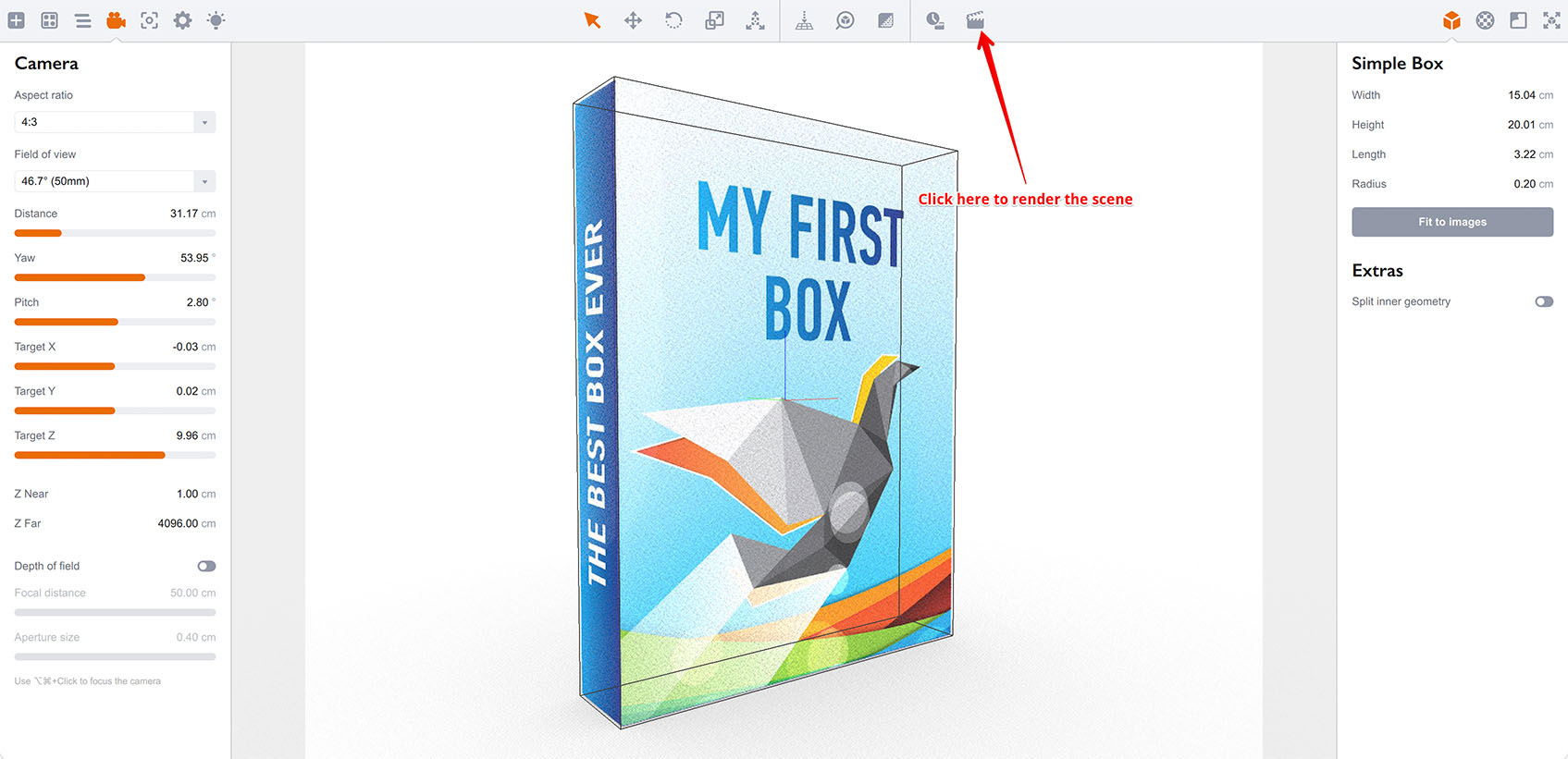
Boxshot will open a rendering settings window, where you can configure the output resolution and other rendering parameters.
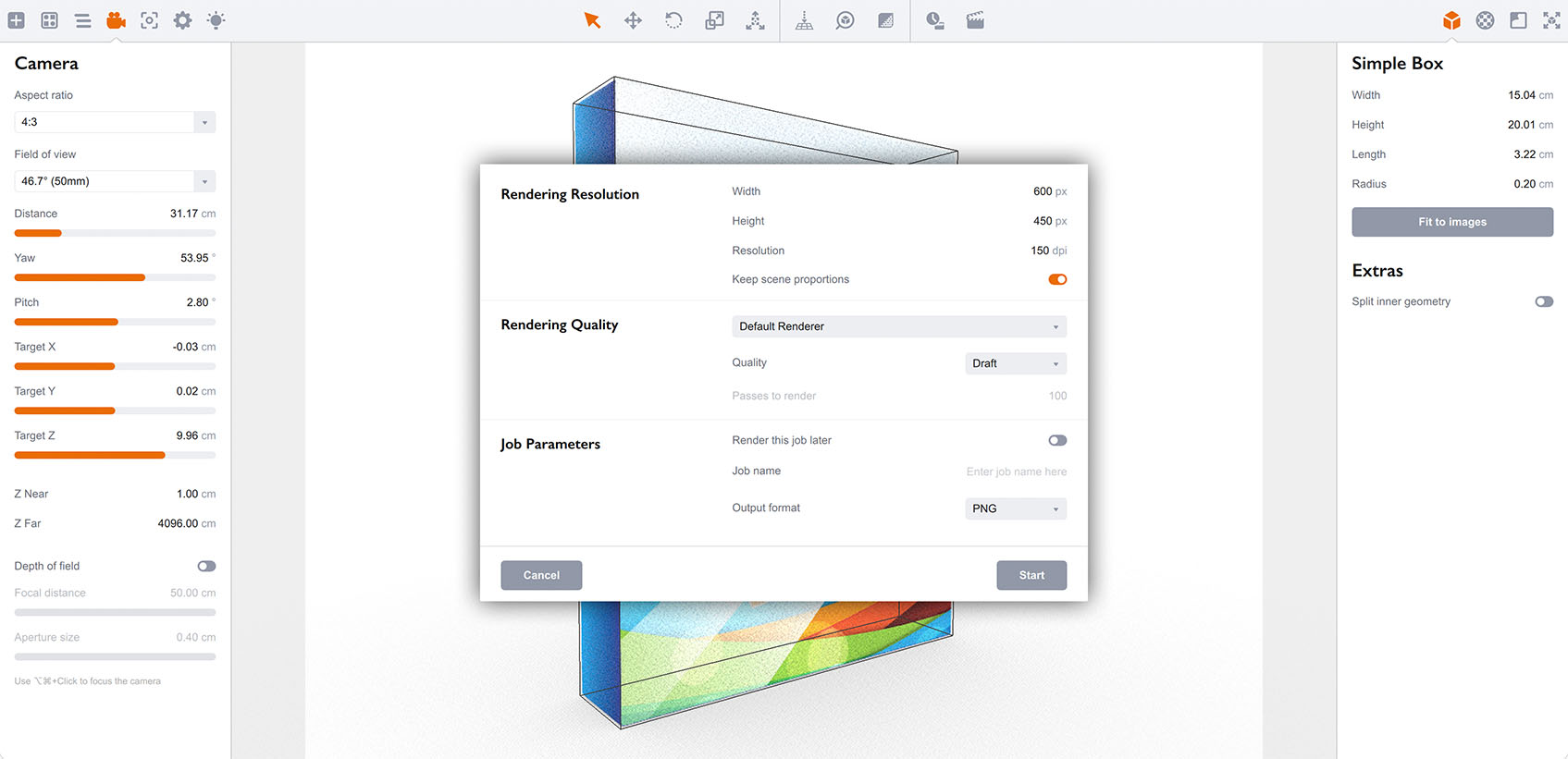
Edit the settings the way you need and click the Start button to start rendering:
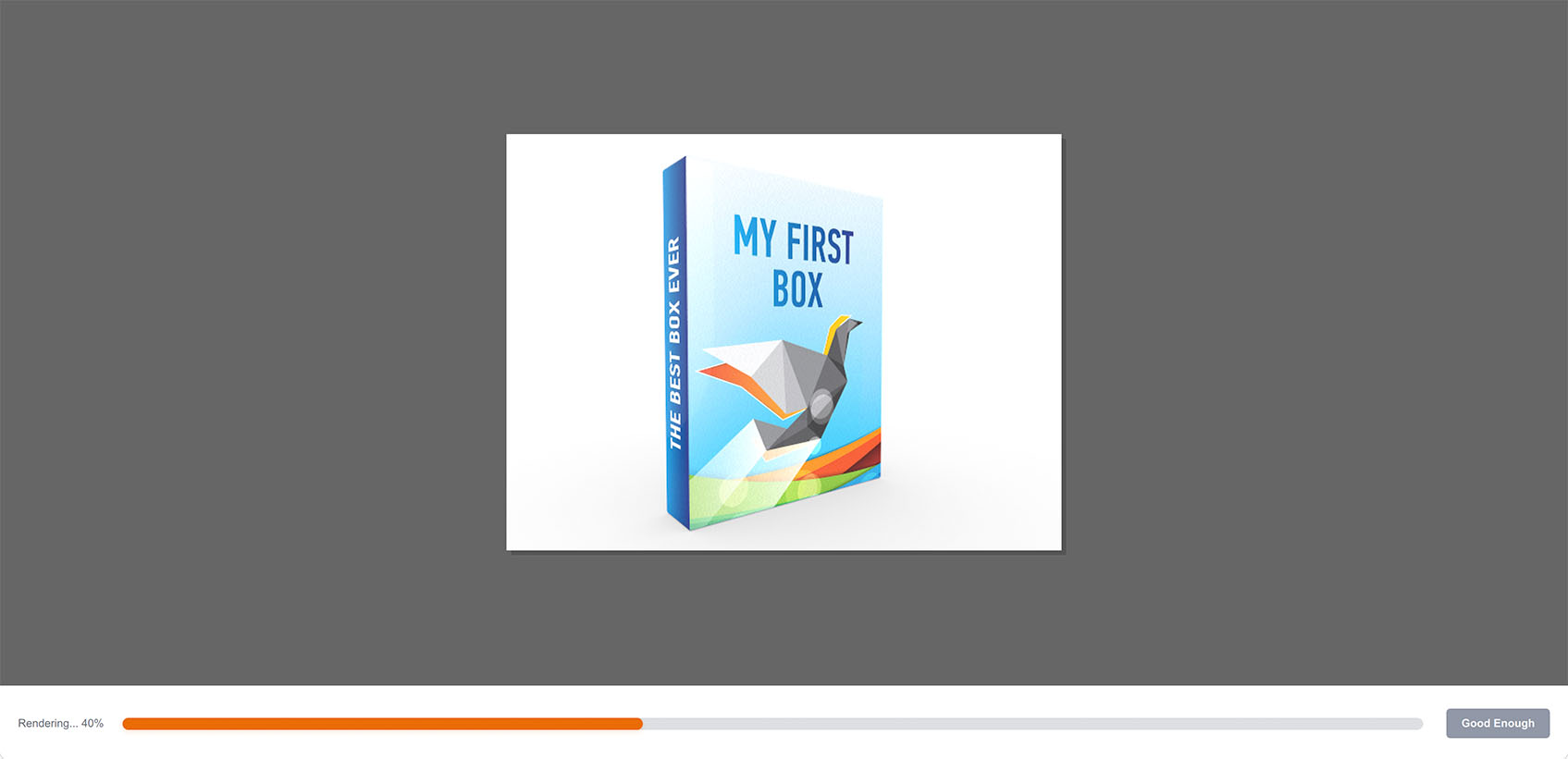
Once the rendering is done you will be able to save the image:
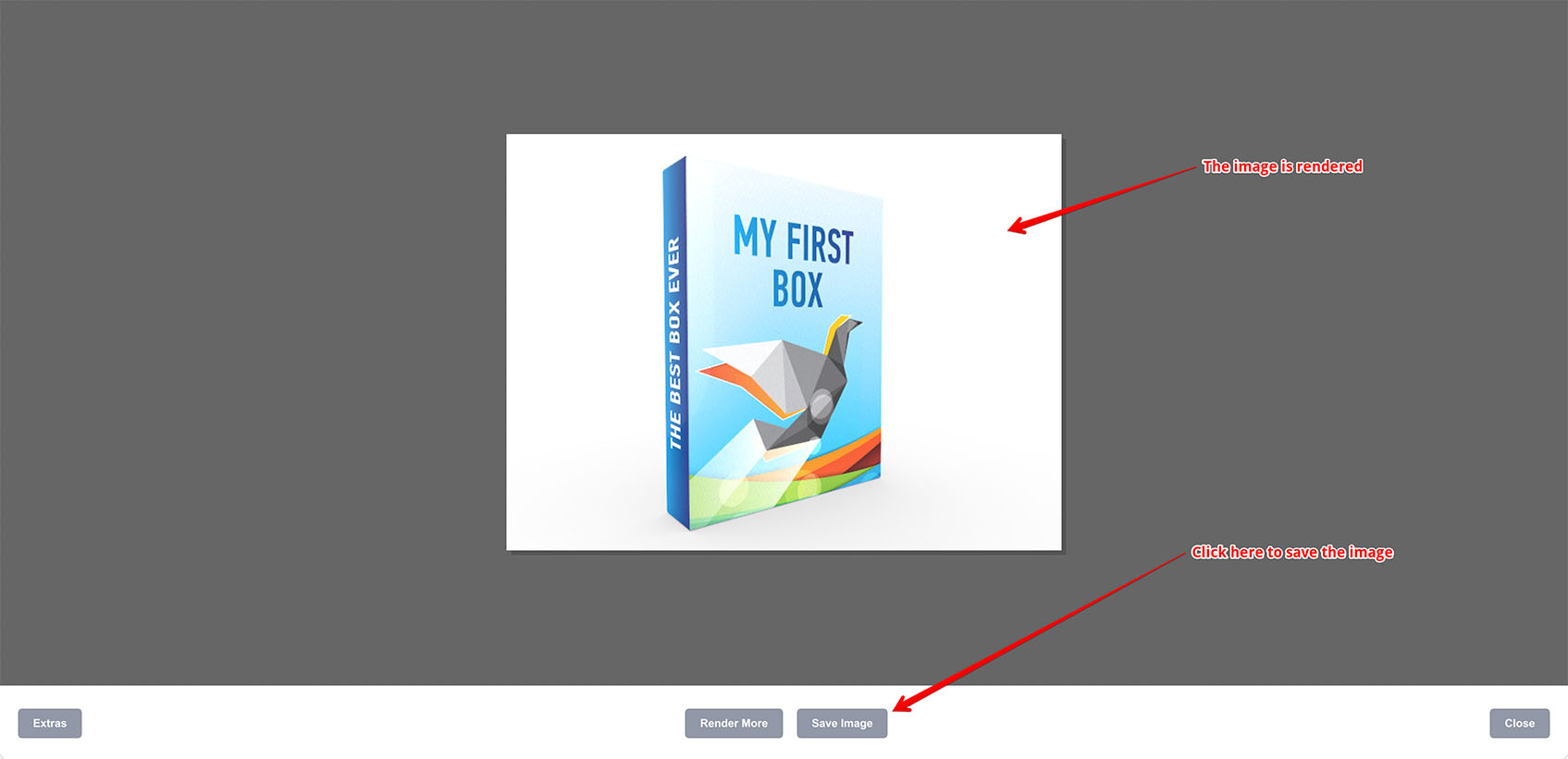
That’s it! The image is rendered and saved. You can now close the rendering panel and render another angle, or save the project for further usage.
Other Mockup Tutorials
- Book Mockup — making a 3D book cover from 2D artwork;
- Box Mockup — making a simple 3D box mockup;
- Pallet of Cans Mockup — a complex scene of can boxes on a pallet.